
Add Paths to Your SaaS Workflows
Give users a way to handle different scenarios within a single workflow. With Paths, they can create separate routes based on customer data, transaction details, user activity, or other conditions, without building a new workflow for every possible outcome.
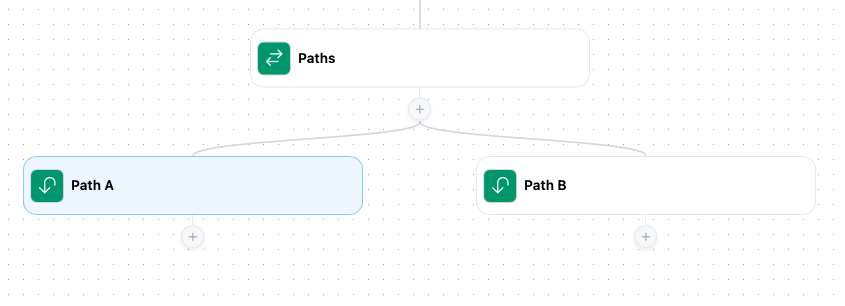
Build Workflows That Handle Different Scenarios
Not every customer, request, or transaction should follow the same process. A high-value order might require additional attention. A new customer might need onboarding, while an existing customer receives a different follow-up.
Paths let users account for these differences within one workflow.
Create Multiple Routes Within a Workflow
Instead of maintaining separate automations for every scenario, users can organize different processes into individual paths.
For example, a customer management workflow could handle new customers, returning customers, and VIP customers differently.
- Make complex processes easier to visualize
- Create separate paths for different scenarios
- Add actions to each path
- Keep related processes together in one workflow
Set Conditions for Each Path
Each path can have its own conditions that determine whether it should execute. Users can build rules around information available in the workflow, including data received from triggers and earlier actions.
- Compare numerical values, such as order totals
- Match customer statuses or categories
- Check whether a field contains specific text
- Test whether information is present or missing
Combine Multiple Conditions
Some scenarios require more than a single rule. Users can combine conditions to define exactly when a path should run.
For example, a path could handle orders above $500 that also belong to a particular customer category.
- Require all conditions to match using AND logic
- Allow any condition to match using OR logic
- Combine comparisons against different data fields
- Define more specific scenarios without custom code
Give Each Path Its Own Actions
Once a path’s conditions are satisfied, the workflow can execute the actions connected to that route.
A support workflow, for example, could send urgent issues to a manager while directing routine requests to the standard support queue.
- Assign different people or teams
- Send notifications to different destinations
- Update records based on the scenario
- Run different sequences of actions
Use Data From Earlier Workflow Steps
Paths can make decisions using information collected or generated earlier in a workflow.
A workflow might retrieve an account’s subscription details, then use that information to determine which follow-up actions should run.
- Evaluate data provided by the initial trigger
- Reference values returned by previous actions
- Use dynamic placeholders in conditions
- Route work based on current information
Keep Complex Automations Manageable
As processes become more sophisticated, maintaining dozens of separate workflows can become difficult. Paths let users keep related logic in one place, making it easier to understand and update.
- View different routes in the visual builder
- Update individual paths as requirements change
- Save changes as drafts before publishing
- Maintain version history as workflows evolve
Create automations that match your product.
From CRMs to marketplaces to internal tools, Embed Workflow adapts to your frontend and disappears into your brand. The editor fits your UI, your logic, and your users’ expectations.

SaaS Platforms
Let your users create their own automations, including sending reminders, assigning tasks, updating records, and notifying teammates automatically.

eCommerce Order Handling
Let vendors create their own automations, including order alerts, shipping updates, low-stock warnings, and customer messages automatically.

Enterprise Dashboards
Provide per-client branding and logic so each customer can have their own visual identity, rules, and automation behavior within the same shared platform.

Internal Tools
Add embedded automation to your internal systems so teams can define structured rules that trigger follow-up actions, notifications, and task creation directly inside the tools they already use.

CRM Follow-ups
Add built-in automation to your CRM so teams can define structured follow-up rules based on lead status, deal stage, inactivity, or time delays.
How It Works
Set up our white-label workflow software in only a few minutes.
1. Seamless integration
It runs in your UI, under your brand, on your site. Users stay inside your app instead of jumping to external tools.


2. Embed our app with one line of code
Add our workflow builder to your application with a single line of code.
3. Set the available options
Define the actions and triggers your users can access in their workflow automations.


4. Let your users automate!
Your users can create workflows directly in your application by connecting pre-configured actions.
5. Monitor performance
Track workflow executions, performance metrics, and error logs across all users.

FAQs
What are Paths in Embed Workflow?
Paths are workflow nodes that let users define separate routes with their own conditions. They allow a single workflow to handle different scenarios based on the data available during execution.
How are Paths different from Conditions?
A Condition evaluates rules to determine which of two outcomes, true or false, should be followed. Paths let users organize multiple condition-based routes within a workflow.
Can each Path contain different actions?
Yes. Users can connect different actions to each path, allowing the workflow to perform different operations depending on which conditions are satisfied.
Can a Path have multiple conditions?
Yes. Each path can contain multiple conditions. Users can require all conditions to match or allow the path to match when any condition is satisfied.
What information can Paths evaluate?
Paths can evaluate data available within the workflow, including trigger data and values returned by earlier actions. This allows users to make routing decisions based on information such as amounts, statuses, categories, and other fields.
Do users need to write code to create Paths?
No. Users can configure paths and their conditions through the visual workflow builder without writing JavaScript or implementing their own routing logic.
Can we use Paths with our existing SaaS actions?
Yes. Paths work within the same workflow builder as your configured actions. Users can combine your product’s actions with conditional routing to create processes specific to their needs.